What is a programming language?
It is a logical structure language that allows a programmer to pass instructions to a computer for it to execute. There are several types of programming languages, created and used to facilitate the resolution of many different types of problems.
What tools and language will we use?
Writing in a programming language must respect a specific syntax for each language. In this case, we will use Python.
Python is a high-level language, that is, it allows the programmer to focus more on creating procedures to solve the problem than on the technical specifics of implementing, compiling and executing the code by the computer. It is one of the most known and used languages worldwide, having applications in many professional areas, including game development!
To write a program that the computer can run, we need to use a text editor or an integrated work environment, better known as an IDE (Integrated Development Environment). Depending on the programming language we use to create programs, for example, if the language is compiled or interpreted by the computer, we may have to configure different types of writing editors or IDE's in order to make it possible for your programs to be executed by the computer itself.
In this case, we will use Processing as a writing and development tool to learn how to write our first program in the Python language.
What are we going to create?
We will learn what relationship there is between writing in a programming language and how the computer interprets and executes these instructions. With this project, you will learn what Python is and how to use the Processing IDE in order to create a small world with laws of physics and objects with their own motion!
Configure Processing and Python
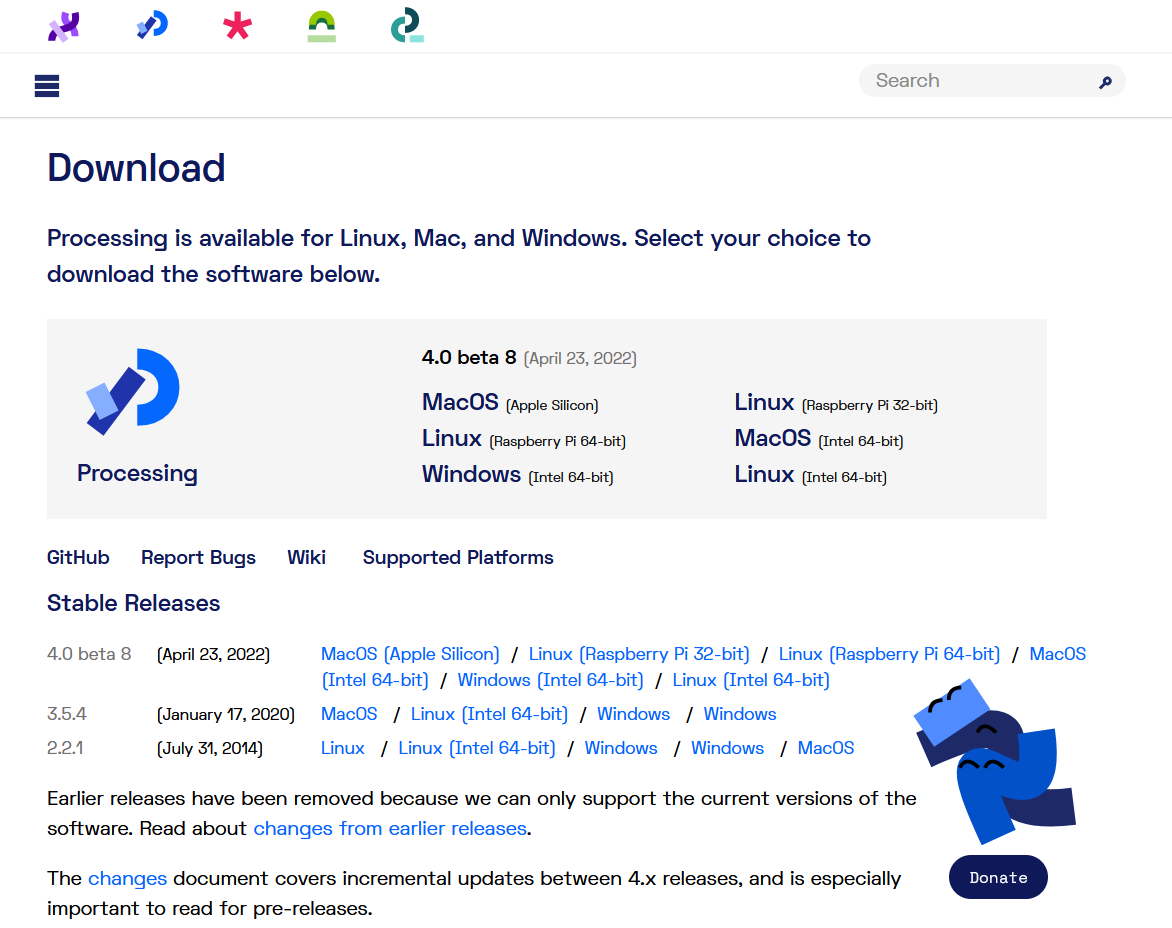
For Windows, MacOS or Linux the configuration is similar. Firstly, we will have to download Processing from the official website.
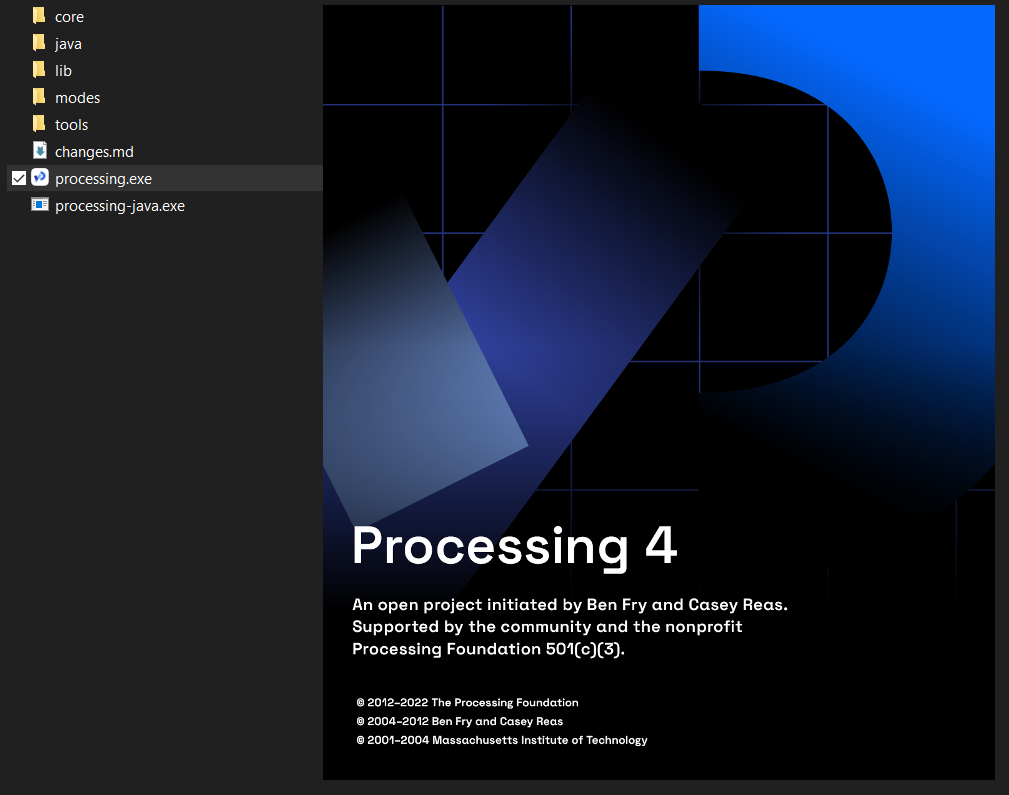
After that, just extract the contents of the compressed folder to a destination folder of your choice, in this case, we will extract it to the desktop. And that's it! Just access the contents of this folder and click on the processing executable.
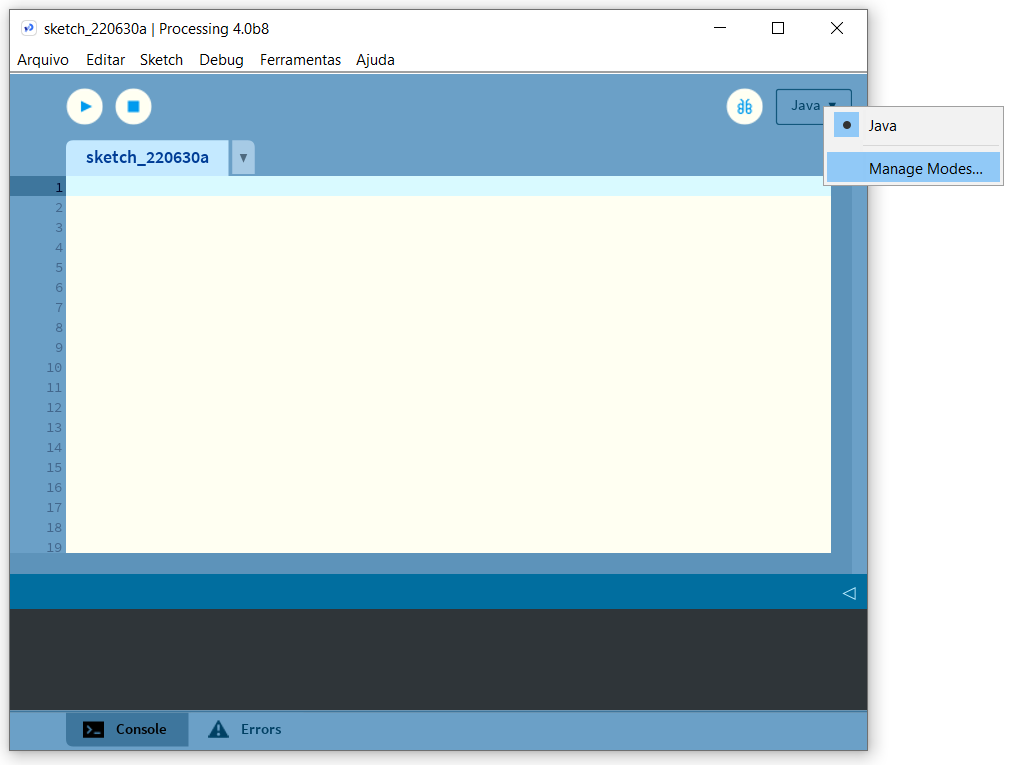
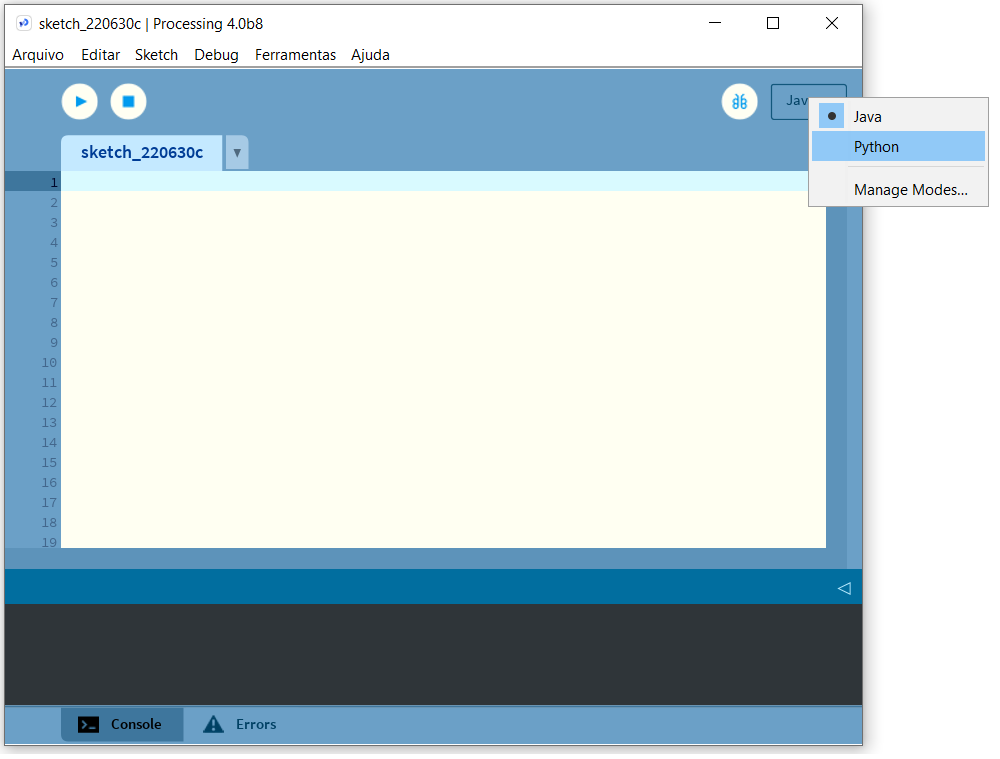
After opening Processing, we have to configure the Python language. To do so, click on the arrow in the upper right corner that selects the programming language. By default, we will see another language called Java. To add other languages we select “Manage Modes…”.
Processing will open a new menu, where we must select our language, in this case, we want to pick: "Python Mode for Processing 4", and then click “Install”.
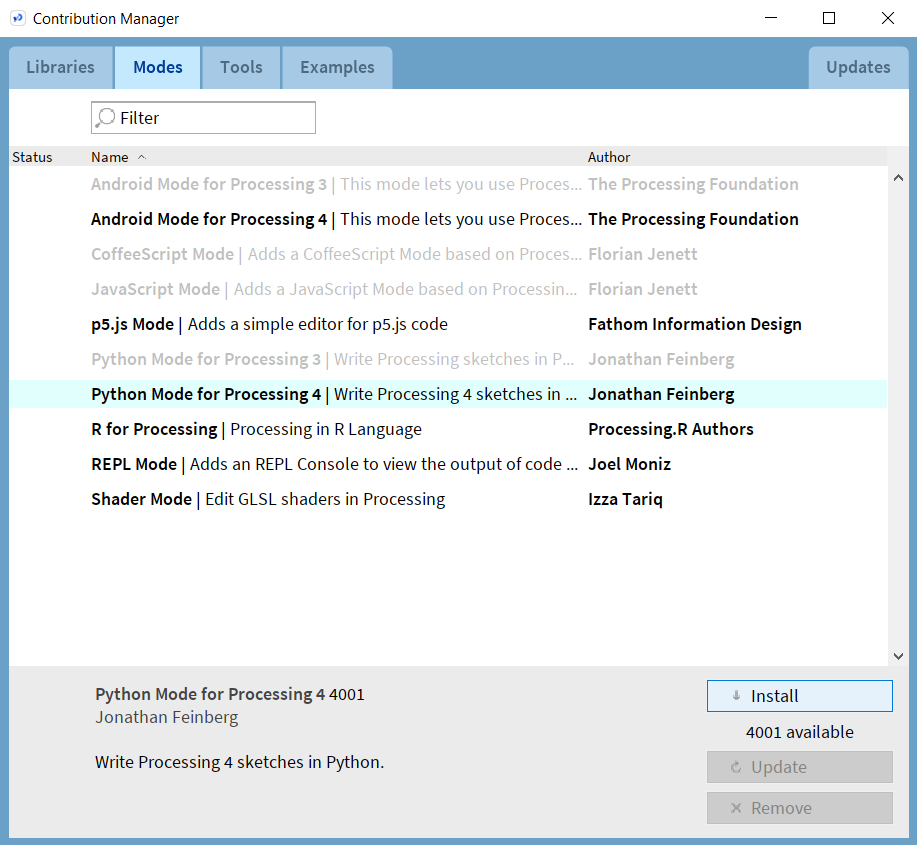
Then we close this menu. And we go back to Processing, and if we go to the programming language selector at the top right, we see that Python is a selectable option. Select Python, and Processing will automatically restart and prepare our workbench for us to begin!
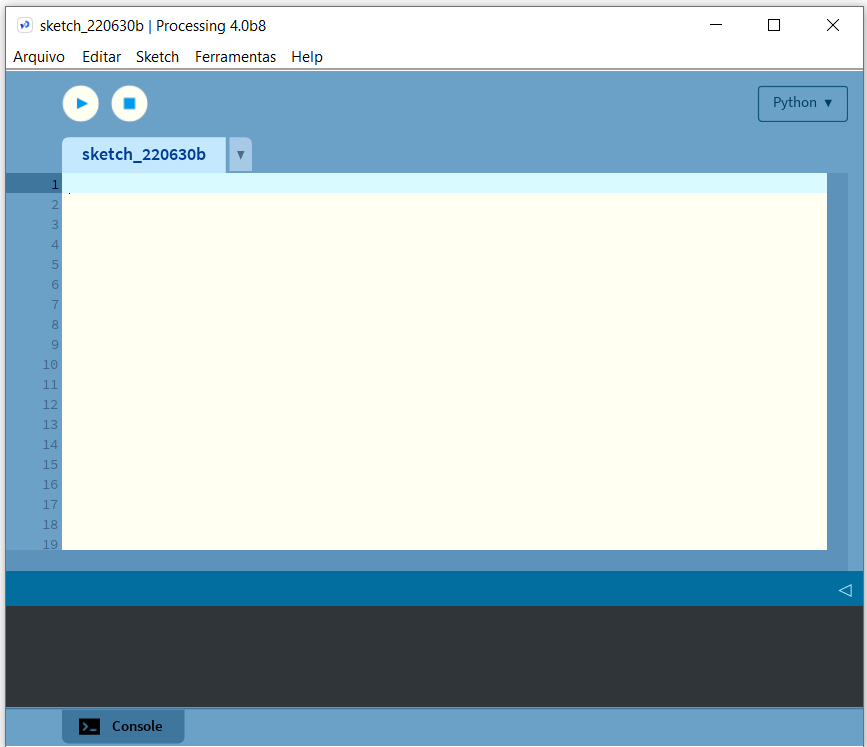
After these steps, the final aspect of our Processing IDE should be as follows:
Comments, Functions and Data types
A program is a set of instructions that, when carried out, produce a certain final result. Not wanting to delve into the specifics of the syntax and semantics of our Python language, we will try to look at our first program in a generic and basic perspective of how a program works and interacts with the computer, and, in this specific case,how the language is interpreted by Processing, the IDE that we will use to run our code and visually demonstrate what is happening.
Processing has some fundamental components:
- a space to edit code;
- the execution controls of the same code;
- a console where the result of the execution of our code is written;
- an extra window for graphical visualization of some special functions in our code.
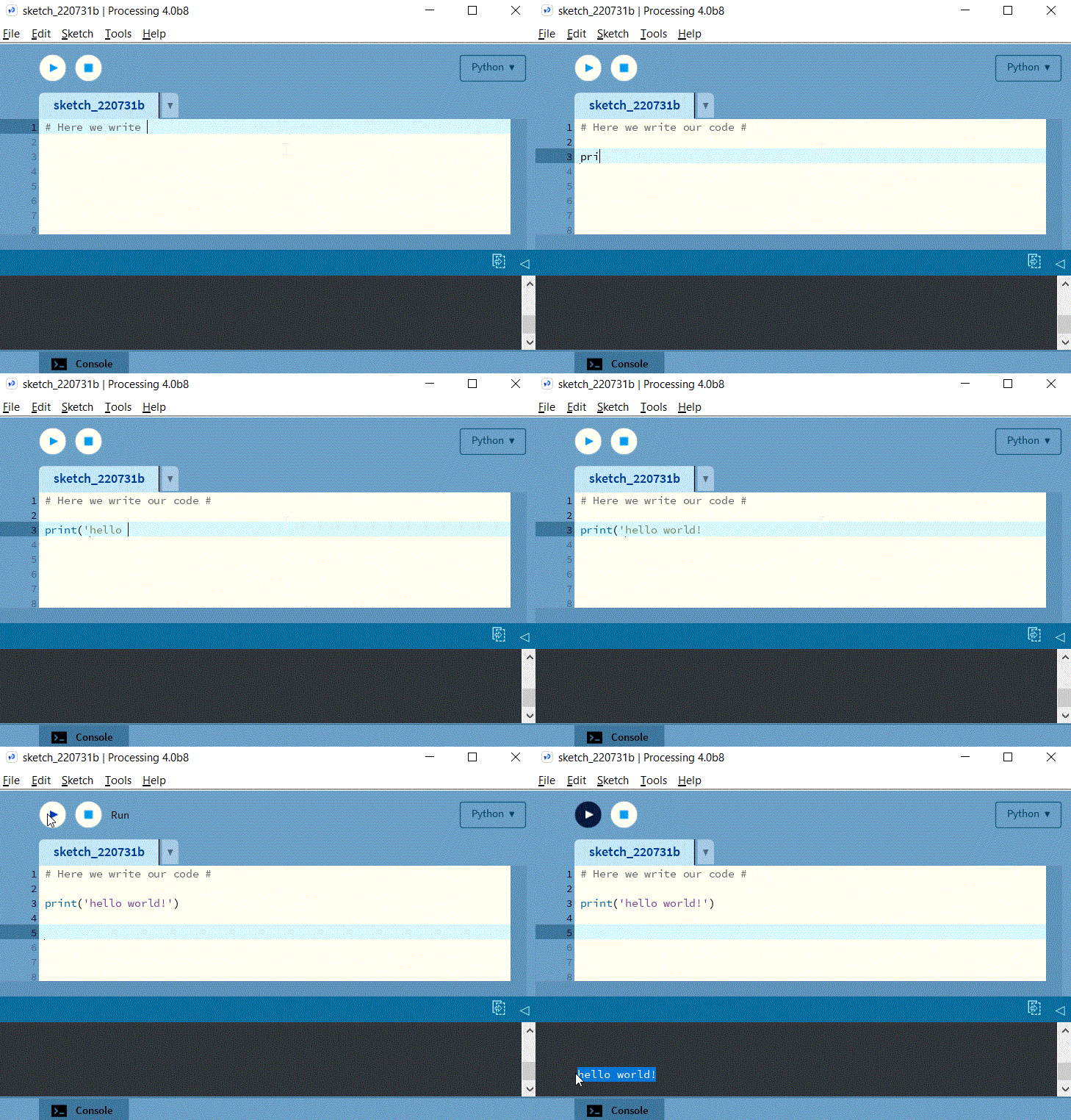
To begin we write two lines of code in the editing area. On line 1, we write what is called a comment. On line 3, a function appears.
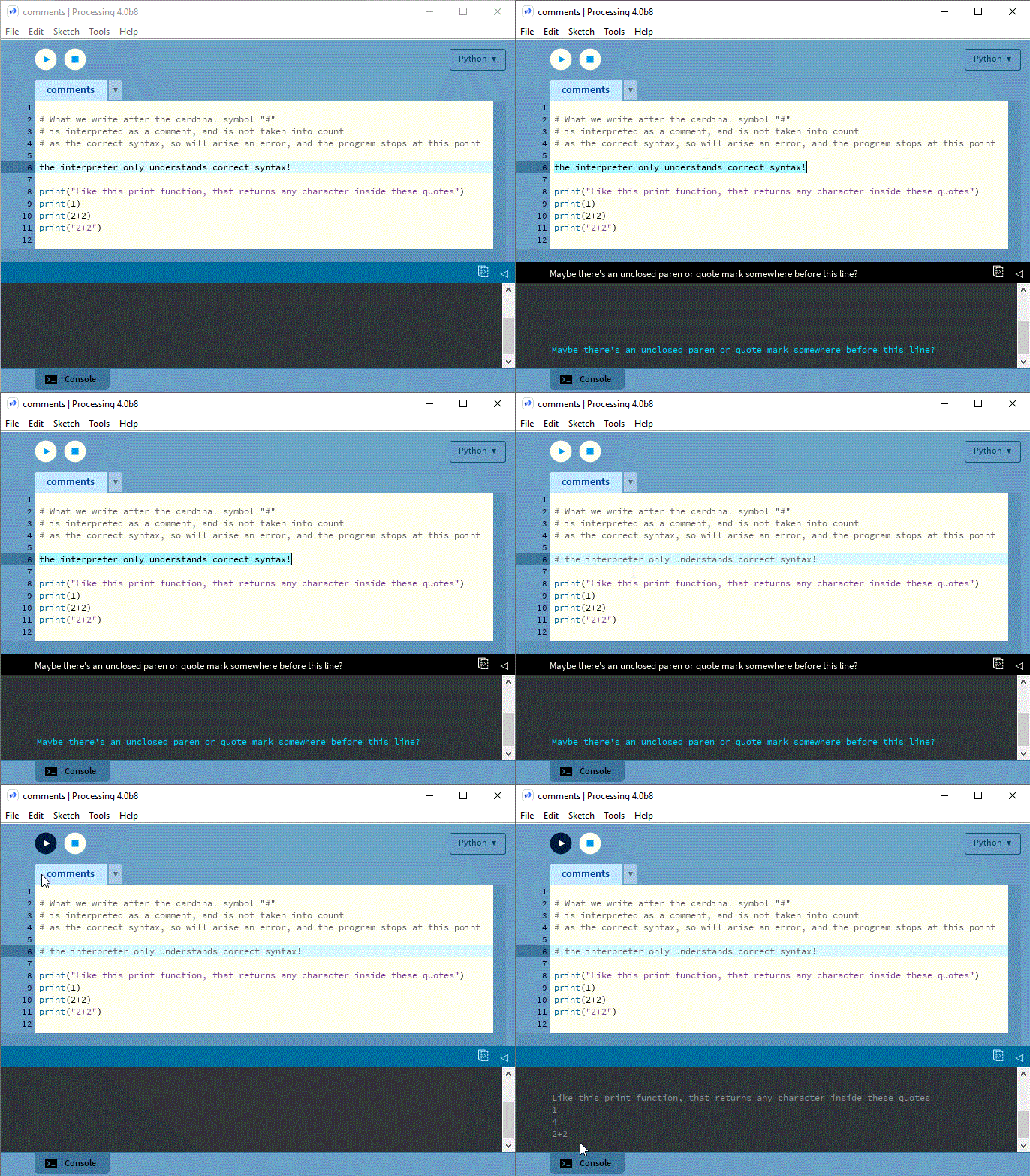
In the previous image, we can see, in lines 2 to 4, comments, which are by rule ignored by the interpreter when we press "Run". But on line 6, in which we forgot to mention the line as a comment, through the "#" sign at the beginning of the line, the interpreter stops running the program, showing the respective cause, in the form of a blue error in the console: "Maybe there's an unclosed paren orquote mark somewhere before this line?". That's why it's important to respect the syntax intrinsic to any programming language because our computer can't interpret anything else than the expected syntax for the respective language, in this case, Python! As soon as we add the "#" sign at the beginning of line 6, the interpreter already assumes it as a comment, ignoring this line in the execution of the code, allowing lines 8 to 11 to be correctly interpreted, printing the respective value in the console!
A function in programming is a block of code with specific instructions to obtain a given action or result. We can insert information into this function and obtain a result dependent on that same information. In Processing with Python, we havei ncluded some pre-built functions that belong to its syntax.
In this example, we have our first Python function: print().
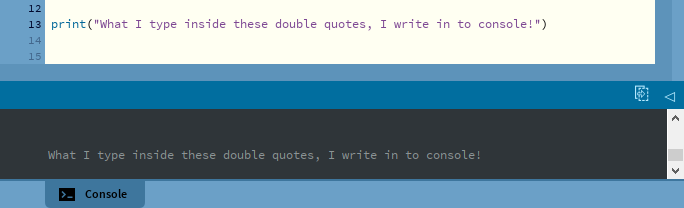
Any Python function has the following structure:
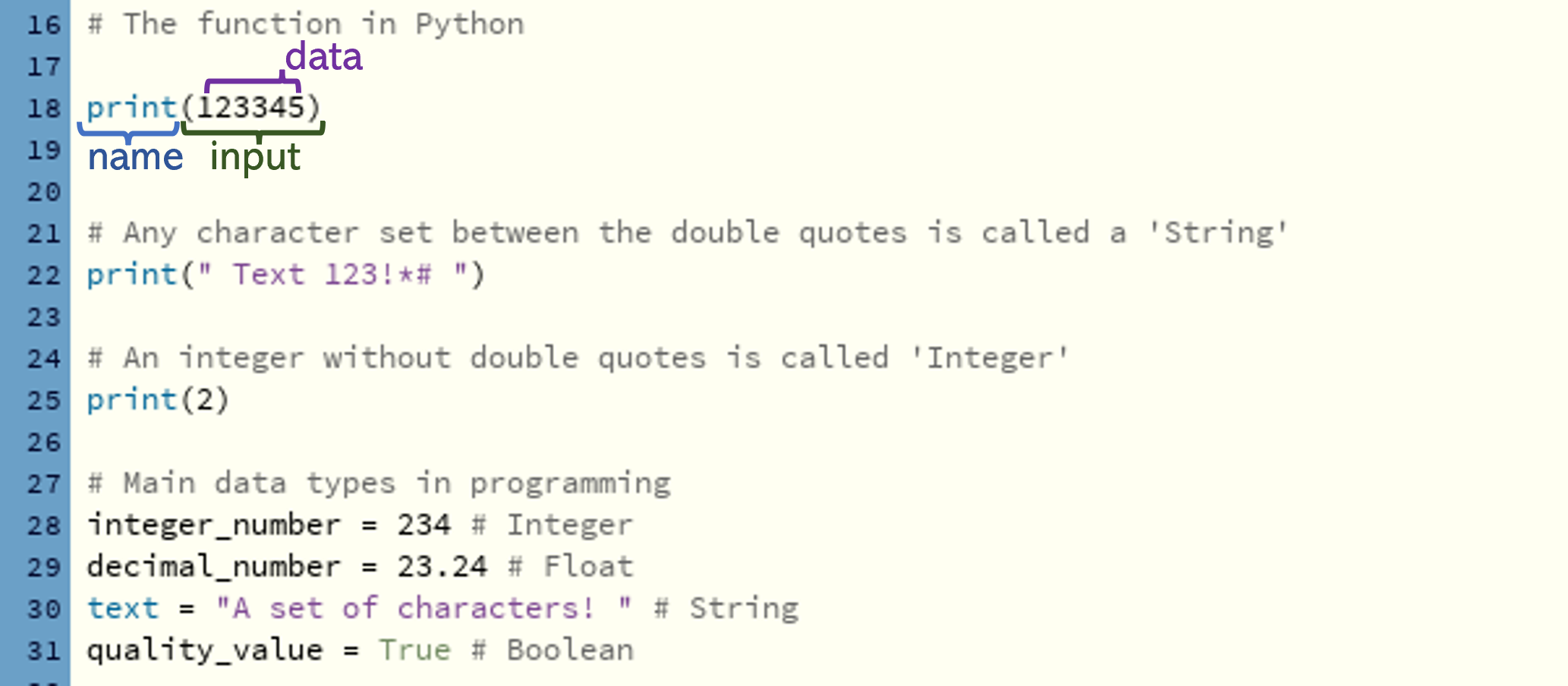
For now, we will not delve into the concept of a function or the data types instead let's face a function in programming as a block of code identified by a name, where a given type of information, or input, can be provided, returning a data result or action.
The IDE, upon receiving the “Run” instruction, will read and interpret line by line that we write in the editor, from top to bottom and from left to right, which contains the various instructions that make up our program.
How code is interpreted and executed in the Processing IDE
Before moving on to our ambitious first program "the Random Walker" we need to address one last key aspect of our IDE: its main setup() and draw() functions.
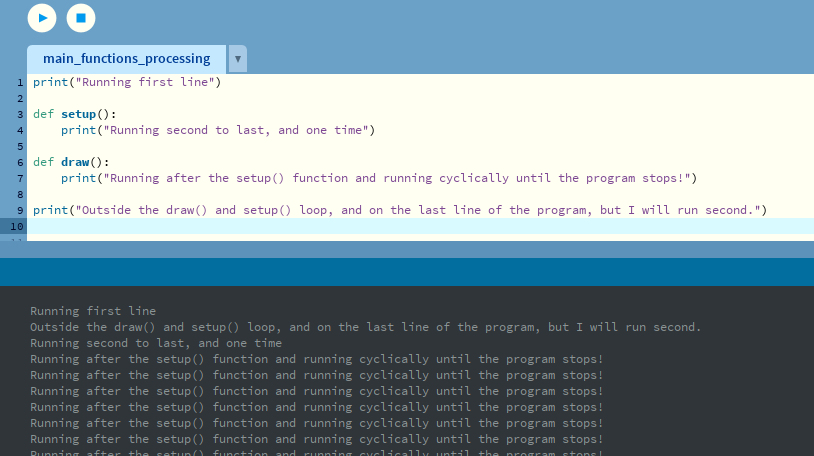
In the previous image, we can see a new code block, specifically in lines 3 and 6. So far we have only seen how we can call a function, but here we demonstrate how we can edit or customize it. In Python, the syntax for creating or editing a function starts with the prefix "def", short for the word "definition". If we use "def" and then a function name ending with the symbol ":" we are saying that the next lines of indented code are private instructions of our function, and that will only be interpreted and executed if that function is called by their name.
In addition to this, Processing has two pre-built main functions that regulate the way the program is executed. These functions are explained in the previous image, and allow you to create more complex programs. Regardless of the order in which these functions are written in our text editor, they will only be called penultimately and lastly, respectively.
Watch and experiment for yourself by writing the code from the previous image in your Processing sketch.
We can create our own functions, not being limited to those already predefined by the Python language and the custom libraries used in our Processing IDE.
Seven steps to solve any programming problem
As a methodology to solve any problem and implement the respective solution in a programming language, effectively and efficiently, I use the following steps:
- Identify and state the problem;
- Check if we have the necessary knowledge to understand our problem, otherwise acquire it;
- Outline a solution in the form of instructions or "pseudo-code";
- Test if our solution solves the problem,otherwise, we go back to point 2;
- Implement our solution in the chosen programming language;
- Correct semantic and syntax bugs;
- Test if our solution solves the problem,otherwise, we go back to point 2.
So let's create our first program!
Step 1
We want to create an object, the "Random Walker", that moves randomly on the screen using Processing.
Step 2
To create an object and give it random movement on the screen, we need to know the basics of Processing's operation, namely how it interprets and executes the code inserted in the text editor.
We need to consult some pre-built Processing and Python functions. We can acquire it by consulting the reference documentation on its website.
Step 3
- Create a screen with a black background;
- Create a white circle at the center of the screen;
- Apply random movement to the circle;
Step 4 to 7
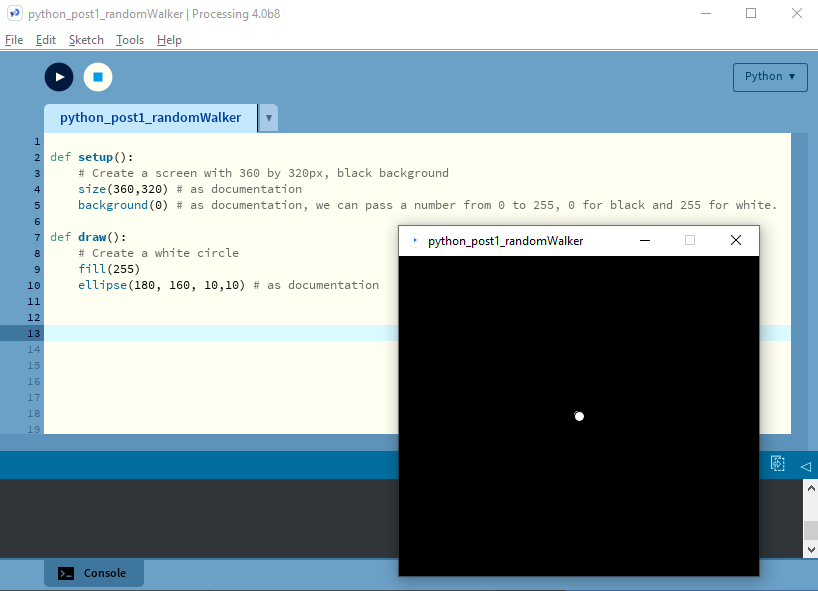
Enabling our "Walker" with movement is more difficult, since in the reference documentation, unlike the functions in the previous image, we don't have any that apparently make our circle move across the screen. We will have to create the steps to solve this problem from scratch!
For this, we have to consider implementing some physics concepts that describe the movement in two dimensions, represented by the width and height of our screen, or simply by "x" and "y".
For this, we will have to create a variable that stores the position of our circle under a new type of information, a vector! In the case of Processing, the syntax to define this type of information is PVector(x_position, y_position).
As the laws of motion of physics tell us, for a motion to occur, the position of an object must change over time, that is, update its position to a different one over time. We can measure this change with another vector that we call velocity.
As an example, to change the initial position of our "Walker", initial_position = (180,160) to new_position = (182, 162), we will have to add a velocity vector = (2,2) to the initial_position. That is, new_position = (start_position.x + speed.x, start_position.y + speed.y), which is equal to new_position = (180 + 2, 160 + 2) = (182, 162).
Let's implement this solution and test if we get movement!
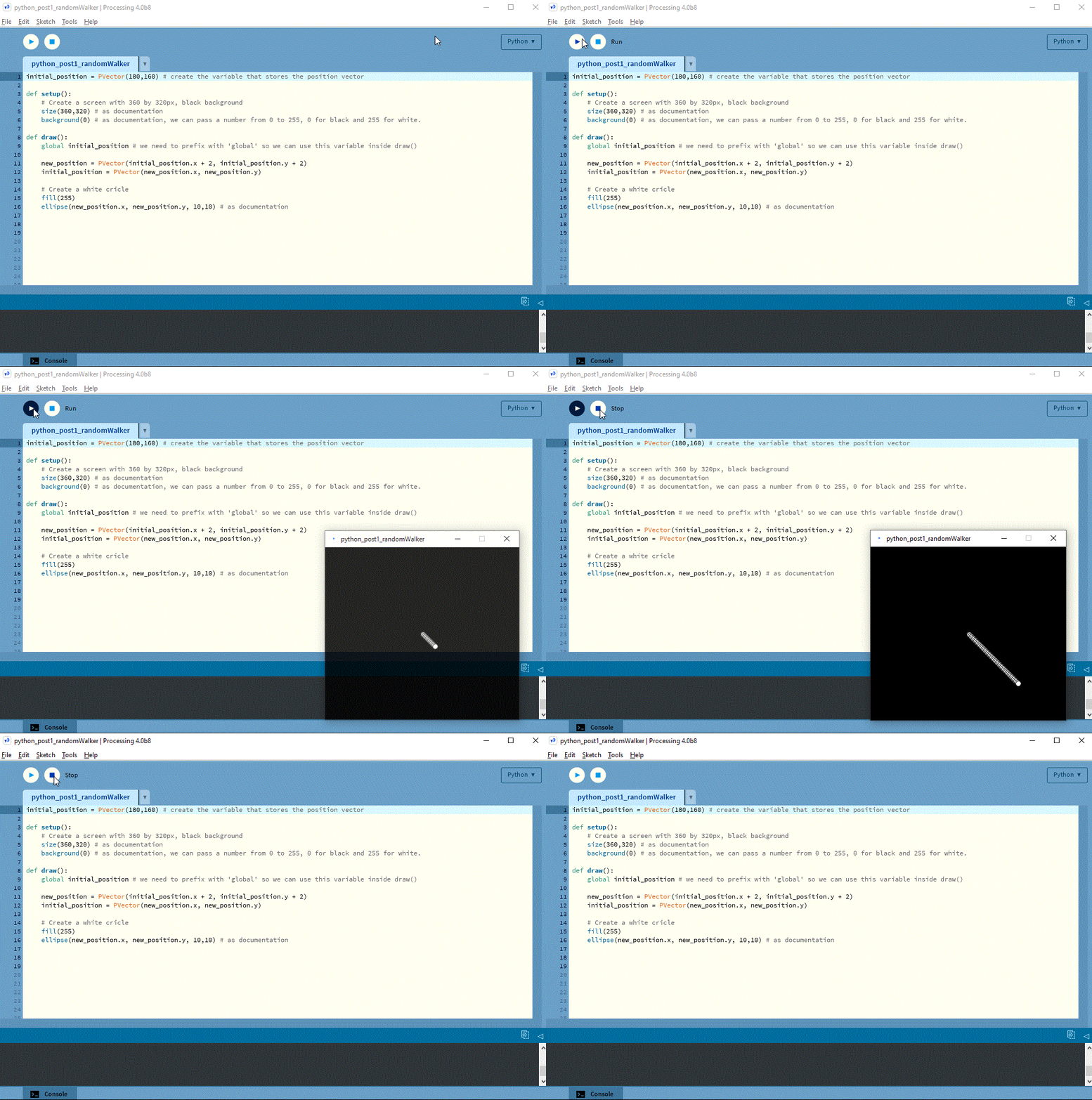
Although we already have movement, this is not random at all! After consulting the referenced documentation, we can implement this randomness through the pre-built random() function.
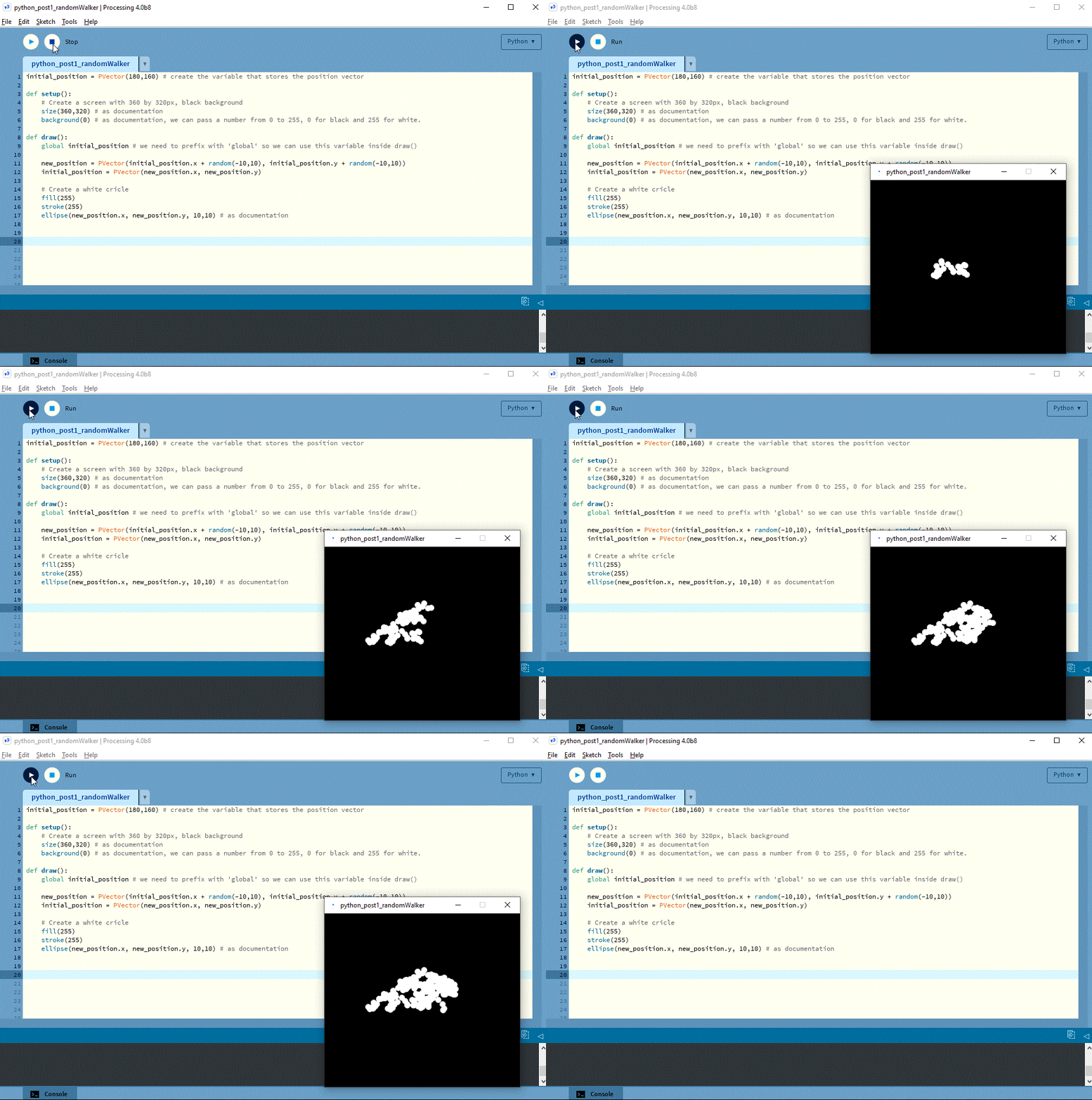
Notice that when we add the function random(-10,10) to the initial_position.x and initial_position.y, we are in fact adding a random value between -10 and 10, so every time you start the program, our "Walker " will perform a different path.
We also added a new function on line 16, stroke(255). Makes our "Random Walker" more realistic! Consult the referenced documentation to better understand what this pre-built function does.
Try customizing the various values of the variables, and test your program for different behaviours of the "Walker"!
Your first program
Et voilá! We created our first program!
Although we have created a simple program, the knowledge acquired so far is essential for us to continue to develop even more complex programs.
You learned what a programming language is, what an IDE is, and how code interpretation and execution work, in order to produce visible results in a console or window.
You learned what functions and information types are, and the importance of respecting the characteristic and inviolable syntax of a programming language.
And most importantly, you have discovered the 7 fundamental steps to solve any problem like a real programmer!